Deployments & Builds
Deploying your code to Slasha is as simple as git push. We handle the builds, containerization, and orchestration automatically.
Git-Based Deployments
When you create an app, Slasha sets up a bare Git repository on your server. You deploy by adding this repository as a remote and pushing your code.
Step 1: Add the Remote
Choose between SSH (recommended) or HTTPS authentication:
# Using SSH
git remote add slasha git@your-server.com:your-app-slug

# Using HTTPS
git remote add slasha https://your-server.com/your-app-slug.git
Note: If you’re running Slasha in Docker, use the SSH port 2222:
ssh://git@your-server.com:2222/your-app-slug
Step 2: Push to Deploy
Push your main branch to trigger a deployment:
git push slasha mainConcurrent Build Guard
Slasha runs only one build at a time per application. If you push while a previous build is still in progress, the push itself still succeeds — your code lands in the repository — but the automatic build is skipped. You can trigger a deployment for that commit manually once the current build finishes.
Auto-Deploy
By default, every push triggers a deployment. If you’d rather push code without building, disable Auto-Deploy for the app in the dashboard or via the CLI. With it off, pushes only update the repository, and you deploy manually when you’re ready.
How Builds Work
Slasha automatically detects the best way to build your application. We support two primary strategies:
1. Dockerfile Strategy
If your project contains a Dockerfile in the root directory, Slasha will use it to build your image. This gives you full control over the environment, dependencies, and build process.
2. Railpack Strategy (Zero-Config)
No Dockerfile? No problem. Slasha uses Railpack to analyze your source code and automatically determine the language and framework (Node.js, Go, Python, etc.). It then builds an optimized, production-ready Docker image for you.
Deployment Lifecycle
Every deployment goes through a few distinct stages. You can track these in the dashboard or via the CLI:
- Pending: Your code has been received, and the build is queued.
- Building: Slasha is currently compiling your code and creating a Docker image.
- Running: The build succeeded, and your app is serving traffic.
- Failed: Something went wrong during the build or startup. Check the logs for details.
- Stopped: The deployment was superseded by a newer one or manually stopped.
Port & Volume Resolution
Slasha needs to know which port your app listens on and where to store persistent data.
Container Port
We determine the port in the following order of priority:
- The
PORTenvironment variable (if set). - The
EXPOSEinstruction in yourDockerfile. - Defaults to
8080(especially for Railpack builds).
Persistent Storage
Every app gets a default volume mounted at /data. You can also access this path via the SLASHA_DATA_DIR environment variable. For more advanced setups, see our Storage Guide.
Application Metrics
Once your app is running, Slasha collects runtime metrics straight from the Docker daemon — no agents to install in your containers:
- CPU usage — percentage relative to available cores.
- Memory usage — in bytes.
- Network I/O — bytes sent and received.
- Disk I/O — bytes read and written.
Metrics are sampled every 10 seconds and retained for 7 days. View them in real time under the Metrics tab for your app in the dashboard.
Managing Deployments via UI
While the CLI is great for quick commands, you can also manage all your deployments visually from the Slasha dashboard.
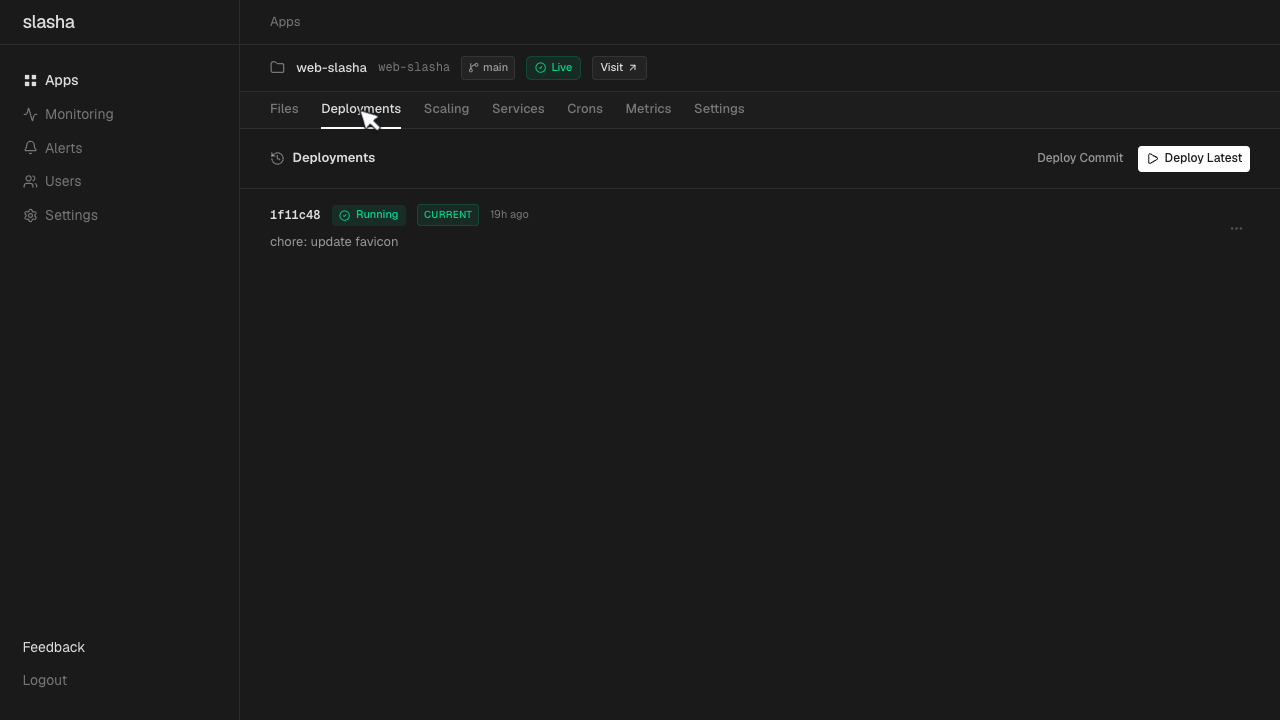
Navigate to your app and click the Deployments tab. From here, you can:
- View the status of recent builds.
- Stream live build and runtime logs.
- Restart or rollback to previous deployments with a single click.
Managing Deployments via CLI
You can also control your deployments directly from the terminal:
# List recent deployments
slasha deployments list

# View live build logs
slasha deployments logs --follow

# Roll back to a previous deployment
slasha deployments rollback <id>