Quickstart
Let’s get your first app running on Slasha in under five minutes using the Web Dashboard.
This guide assumes you have already provisioned your server. If you haven’t, follow the Server Setup guide first.
1. Open the Dashboard
Navigate to the domain you configured during the server setup (e.g., https://slasha.example.com).
If this is a fresh server, you will be prompted to create your first admin account. Follow the on-screen instructions to register and log in.
2. Create your app
Once logged in, you’ll land on your apps dashboard. Click the New App button to get started.
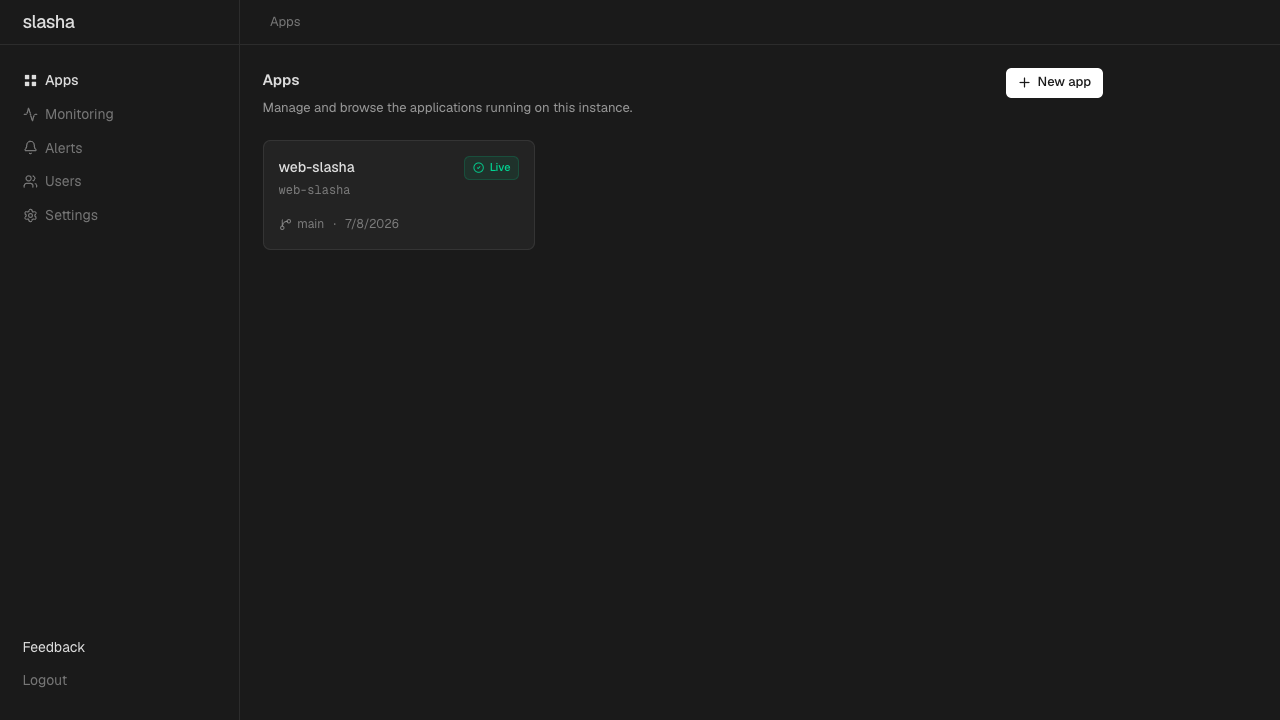
Pick a name for your application. This name will generate a URL-safe “slug” that is used for your app’s subdomain and Git remote URL.
3. Add your SSH Key
To securely deploy your code, you need to add your public SSH key to Slasha.
- Click on Settings in the top navigation bar.
- Navigate to the SSH Keys section.
- Click Add SSH Key and paste the contents of your public key (usually found in
~/.ssh/id_ed25519.pubor~/.ssh/id_rsa.pub).
4. Deploy your code
Now that your app is created and your key is added, you can deploy by pushing your local code to the Slasha server. You can find the exact Git remote URL on your app’s dashboard page.
# Add the remote to your local git repo
git remote add slasha git@slasha.example.com:my-app.git

# Push your code to deploy
git push slasha main
Running Slasha in Docker? The SSH server usually listens on port 2222. Your URL will look like: ssh://git@slasha.example.com:2222/my-app.git.
5. Watch it go live
Head back to your Slasha dashboard and click on your app to open its overview, where you can see its status, URL, and recent activity at a glance.
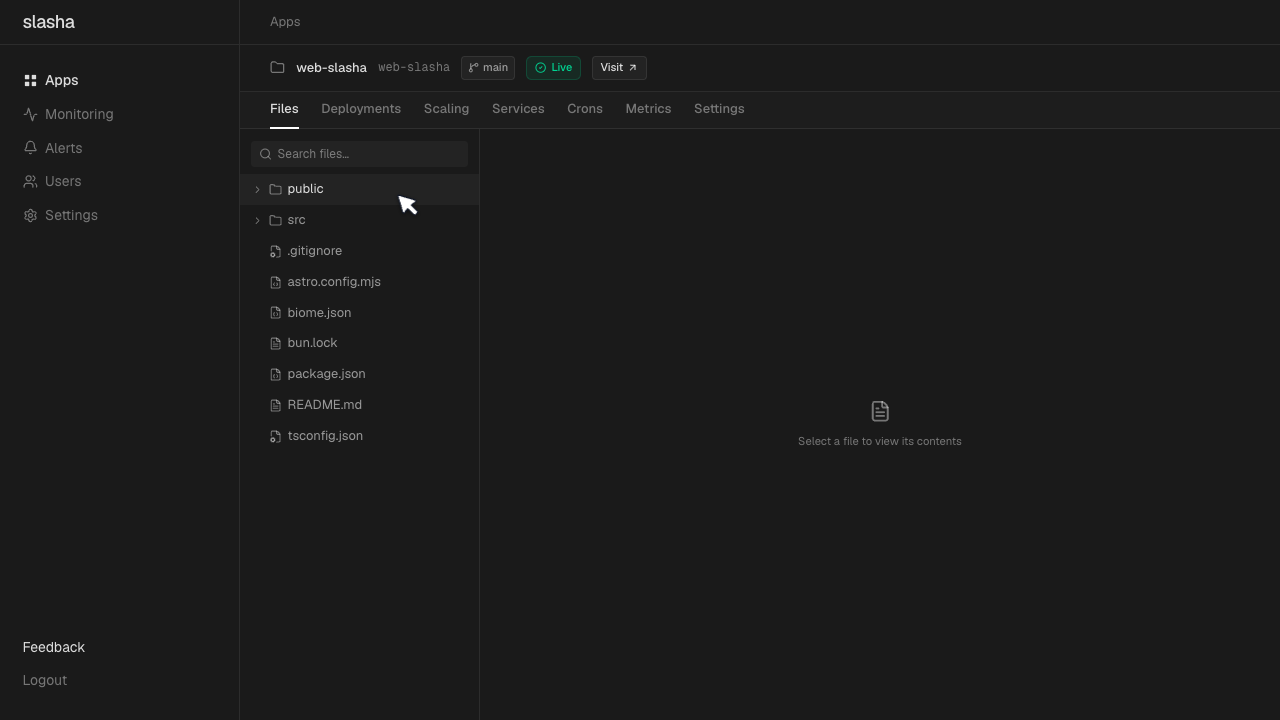
Open the Deployments tab to watch your build logs stream in real-time.
Slasha will automatically detect your stack (Node.js, Go, Python, etc.) using Railpack, or it will use your Dockerfile if you have one.
Once the build finishes, your app is live! Click the Visit button in the dashboard to see your application running.
What’s next?
- Add a database: Learn how to provision managed services from the UI.
- Set secrets: Configure environment variables in your app settings.
- Custom domains: Point your own domain to your app.
- Try the CLI: Want to manage things from the terminal? Check out our CLI Reference.